BIGBANG Concert Singapore 2026: Mobile Concert Tickets and Phone Checklist
Last updated: 16 October 2026
Written by: Joelle Tello
8 minutes read
Introduction
Mobile Concert Tickets: What to Sort Before You Leave Home
Digital Concert Tickets: Where to Keep Them
Concert Ticket QR Code: Avoid the Gate Panic
Mobile Signal at Concert Venues: What to Expect
How to Save Phone Battery on a Long Concert Night
Phone Settings Checklist
Making Calls and Sending Messages After a Concert
Conclusion
Quick Answer
Save your mobile concert tickets inside your phone’s wallet or the ticketing app before the show on 17 or 18 October. Charge to 100%, pack a power bank and agree on a meeting point with your friends before you leave home. The National Stadium holds 55,000 people, so expect slow data inside and after the show.
Key Takeaways
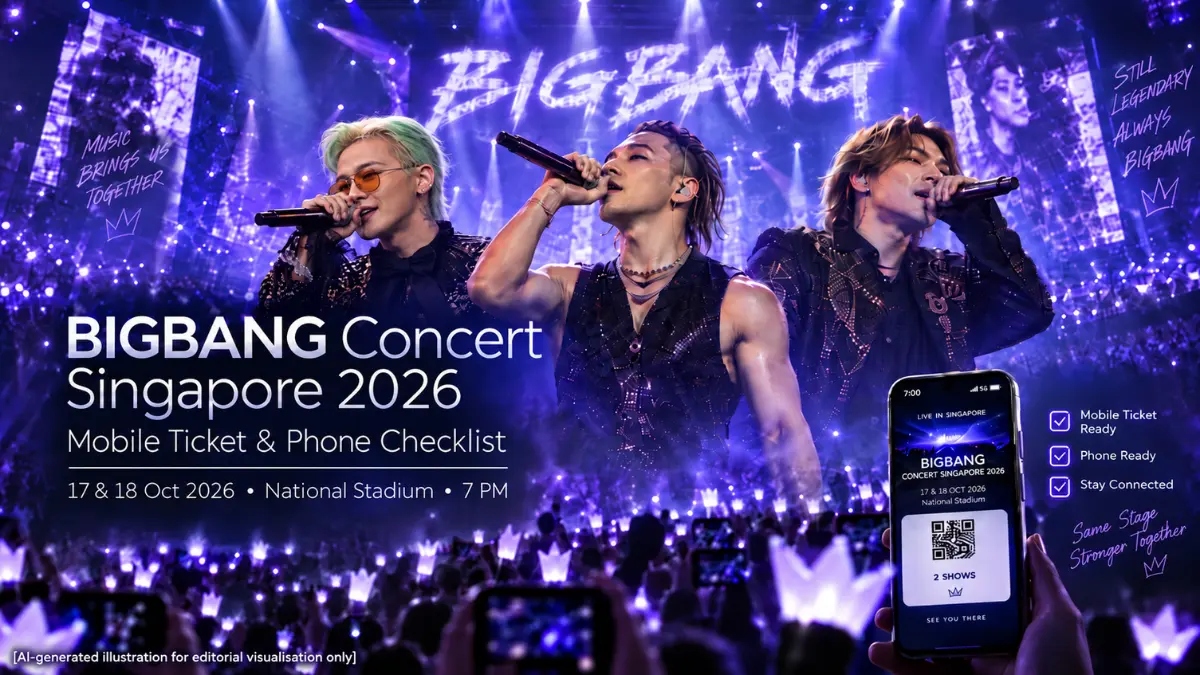
BIGBANG played the National Stadium on Saturday, 17 October and Sunday, 18 October 2026, with both shows starting at 7 PM.
Load your digital concert tickets at home on Wi-Fi, not at the gate.
Take a screenshot as a backup, but know that some QR codes refresh and a screenshot may not scan.
Drop your phone screen brightness and switch on low power mode to stretch the battery.
Agree on a meeting point early, because messages usually get through faster than calls after the show.
A 5G plan with plenty of data helps if you plan to film, post and message through the night.
Introduction
BIGBANG are playing the National Stadium on Saturday, 17 October and Sunday, 18 October 2026. It’s their first group tour in almost a decade, and both shows start at 7 PM.
If you’re going, your phone is your ticket, your camera and your ride home all at once. That’s a lot to ask of one battery.
Mobile concert tickets are great until the app logs you out at the gate. Or your phone dies at 9 PM. Or 55,000 people all try to message their friends at the same time.
This checklist covers the stuff that actually goes wrong. Tickets, signal, battery, and finding your friends afterwards.
Mobile Concert Tickets: What to Sort Before You Leave Home
Start with the ticket itself. Open your account today, not on the day.
Check that your name, your seat or zone and the date all look right. If something looks off, you have a few days to fix it instead of a few minutes.
Most mobile entry tickets are tied to your account login. If you’ve forgotten your password, you want to find out now.
Here’s a quick pre-concert routine:
Log in to the ticketing app and confirm your ticket shows up
Update the app so it doesn’t ask for an update at the gate
Save the ticket to your phone wallet if the option is there
Check your seat or zone against the venue map
Note the start time, which is 7 PM on both nights
Do it once, do it early, and you won’t think about it again until you’re in the queue.
Digital Concert Tickets: Where to Keep Them
Digital concert tickets can live in a few places. Each has its own catch.
Where you keep it | Good for | Watch out for |
Ticketing app | Always up to date | Needs a login and sometimes data |
Phone wallet | Opens fast, works offline | Not every ticket supports it |
Screenshot | Backup if the app crashes | Refreshing QR codes may not scan |
Email link | Easy to find again | Needs a signal to open |
My advice is to use two of these. The app or wallet passes first, and a screenshot as a fallback.
Don’t rely on only one method. If your battery hits 3%, you still want a plan B.
Also, send the ticket details to whoever you’re going with. If one phone fails, the group isn’t stuck.
Concert Ticket QR Code: Avoid the Gate Panic
The concert ticket QR code is the thing that gets you in. So it’s worth five minutes of prep.
Turn your screen brightness up when you reach the scanner. A dim screen is one of the most common reasons a code won’t read.
Clean your screen, take off any glossy case flap and hold the phone steady. Keep your thumb off the code.
If the QR code is inside an app, open it while you’re still in the queue. Don’t wait until you’re at the front.
Some codes refresh every few seconds. That’s why mobile entry tickets can fail when you open them without a signal.
Once you’re through the gate, you can dim the screen again. More on that below.
Mobile Signal at Concert Venues: What to Expect
Here’s the honest bit. Big crowds slow down mobile data, even on a good network.
The National Stadium holds 55,000 people, according to the Singapore Sports Hub fact sheet. When most of them check their phones at once, mobile signals at concert venues get stretched.
Singapore’s baseline is strong, though. Nationwide standalone 5G coverage went past 95 per cent in 2022, years ahead of the regulator’s end-2025 target, as the CMS guide to 5G regulation explains.
That helps with capacity. 5G is built to handle more devices in one spot than older networks.
It won’t make a packed stadium feel like your living room. So treat mobile internet access at concert venues as a bonus, not a promise.
Load everything you need before you arrive. That means tickets, your route home, your friends’ contact details and the venue information.
Slow signal also drains your battery faster, because your phone works harder to hold a connection. Which brings us to the next problem.
How to Save Phone Battery on a Long Concert Night
You’ll be out for hours. Queueing, the show itself, then the trip home.
Knowing how to save phone battery before you go makes the difference between filming the encore and watching it with a black screen.
Start the day at 100%. Top up before you leave if you can.
Then do these things:
Switch on low power mode before you reach the venue
Turn off background app refresh for apps you don’t need
Close apps you aren’t using
Switch to dark mode if your screen is OLED
Bring a power bank and a short cable
For more ideas, here’s a practical guide on how to save your smartphone’s battery life on both iPhone and Android.
Phone Screen Brightness
Your screen is usually the biggest battery drain. Phone screen brightness is the easiest setting to control.
Keep it low during the show. Turn it up only for the QR code scan and when you need to read a map.
Auto-brightness helps, but in a dark stadium it can jump around. Setting it yourself is more reliable.
One more thing. Filming a whole set eats battery and storage fast. Pick the songs you actually want to keep.
Phone Settings Checklist
Here’s a quick table you can screenshot and keep on your home screen.
Setting | What to do | Why |
Ticket app | Log in and update | Avoids gate problems |
Wallet pass | Add if available | Opens fast and works offline |
Screen brightness | Low in show, high at scanner | Saves battery, helps scanning |
Low power mode | On before arriving | Stretches the battery |
Background refresh | Off for non-essential apps | Cuts quiet drain |
Power bank | Charged and packed | Backup for the trip home |
Offline map | Saved route to MRT or pickup | Works if data slows |
Contacts | Share meeting point early | Saves long calls after |
Check the official event guidelines too. Rules on what you can bring, including power banks, are set by the organiser.
Making Calls and Sending Messages After a Concert
The show ends. Thousands of people leave at the same time. Everyone grabs their phone.
Making calls and sending messages after a concert can feel slow, because the network is busy for a short window. This is normal for any big event.
Short text messages tend to go through when a call won’t. So lean on messages.
Agree on a meeting point before the concert starts. Pick somewhere easy to find and not right at the exit gate.
Share your live location with one friend if you can. It saves a lot of “where are you?”
If your internet drops, don’t panic. Walk a few minutes away from the stadium crowd, and it usually picks back up.
For ongoing signal troubles, this list of the most common network issues and how to fix them is worth bookmarking.
Re-entry is generally not allowed once you leave unless the organiser says so, so don’t pop out to find a signal.
Which Plan Fits a Concert Night?
A concert night uses more data than a normal evening. Think live videos, photo uploads, maps, ride-hailing and group chats.
If you’re on a small plan, you might run low before the weekend ends. This is where a bigger allowance helps.
Here’s a short comparison of Circles.Life plans that suit event nights:
Plan | Data | Price per month | Good for |
500GB | $8 (free 5G for 6 months) | Everyday use plus concert nights | |
300GB | $10.99 first month, then $18 | Extra roaming for trips | |
1TB | $30 | Heavy video and streaming |
*Prices and promos can change, so check the live page before you sign up
For most people going to a concert, Circles Core 5G is the sweet spot. At $8 a month with 500GB, you won’t be watching your data bar all night.
Circles.Life SIM-only plans also have no contract, so you can switch when you like. As a limited-time offer, new sign-ups can get up to $99.90 in Zerofy cashback on your first Zerofy transaction. T&Cs apply.
Flying in from overseas for BIGBANG? An eSIM in Singapore lets you land with data ready, no SIM swap at the airport.
Compare the 5G mobile plans and pick one before the show, since you want your data sorted before the crowd arrives.
Conclusion
Concerts like this don’t come around often. BIGBANG’s 20th anniversary shows are the kind of night you’ll talk about for years, whether you’re there on Saturday or Sunday.
Don’t let a flat battery or a missing ticket be the story. Load your mobile concert tickets early, keep a backup and dim your screen.
Pack a power bank and set a meeting point. Expect the signal to wobble in a 55,000-person crowd, even with strong 5G across Singapore.
If your current plan runs short on data every month, now is a good time to change that. Circles Core 5G gives you 500GB at $8 a month, so filming, posting and messaging all night is not a worry. Pick your best mobile plan before the show.
ABOUT THE ARTICLE
Published 2026/10/16
Written by Joelle Tello


Related Blogs
The iPhone Duo preorder date is 16 Oct, 8 pm. Sort your eSIM, payment and plan first so launch night goes smoothly. Start your checklist now.
Your data has value, but trust matters more. See what Circles.Life collects, why, how it is protected and how you can access or correct your data.
Heading to the Singapore GP on 9 to 11 October? Set up your mobile ticket, check the 20-litre bag rule, save an offline map and sort your data before you reach Marina Bay.

Want more?
Subscribe to our newsletter and get notifications when there’s more to read!
By submitting your details, you consent to us sending you promotional and marketing updates. Please read our Privacy Policy for more information.